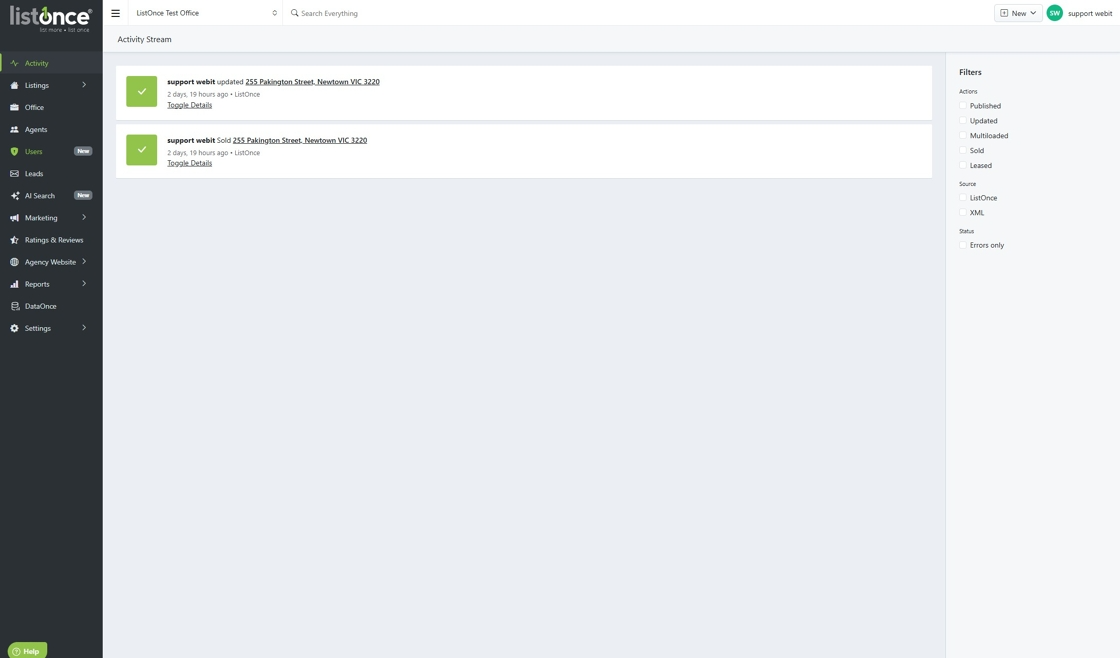
How to update your preferred office in ListOnce Dashboard

Modified on Mon, 30 Jun at 4:44 PM

This guide provides a straightforward process for updating your preferred office in the ListOnce Dashboard, ensuring your user profile reflects the correct information. By following these simple steps, you can easily manage your settings and enhance your user experience. It's essential for maintaining accurate records and improving communication within your team. Take control of your profile with this easy-to-follow guide.


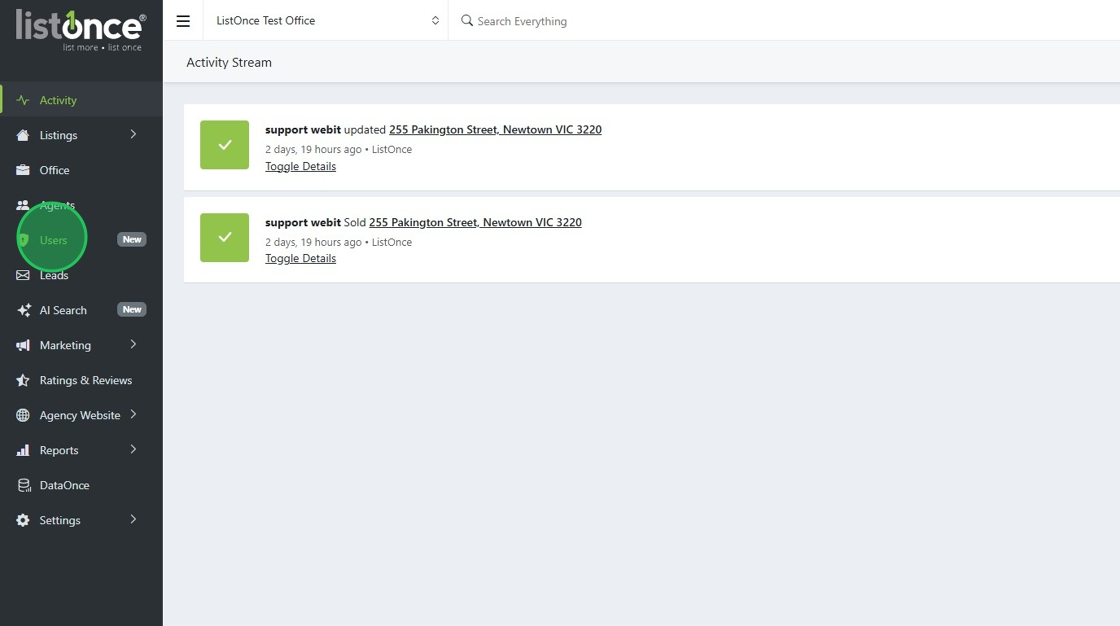
2. Click "Users"


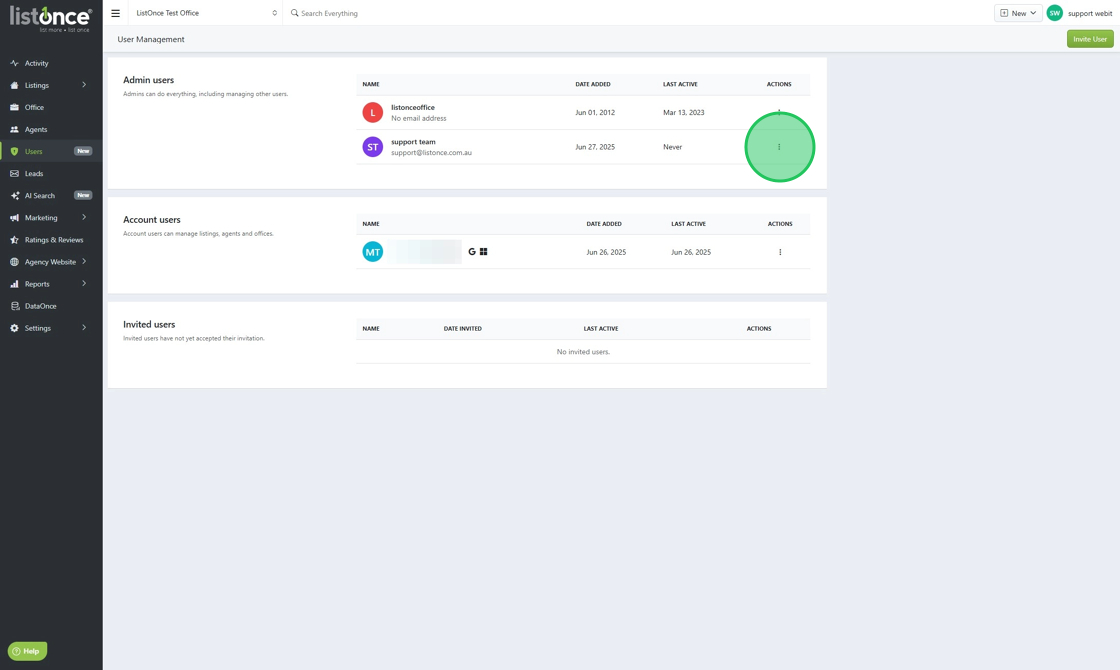
3. Click here for the User account you wish to update.

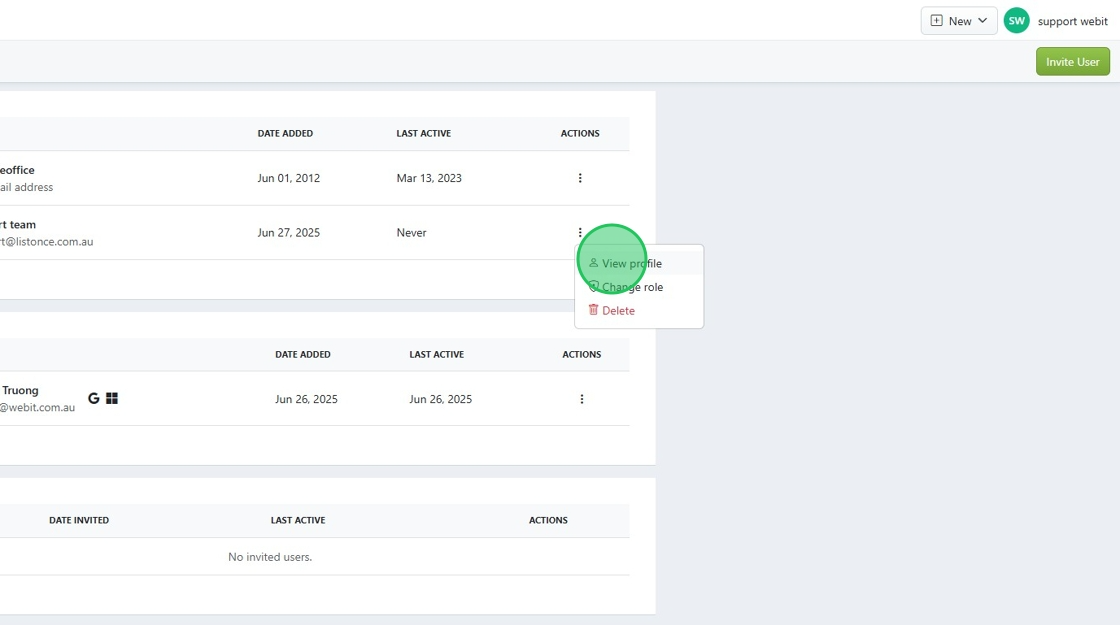
4. Click "View profile"

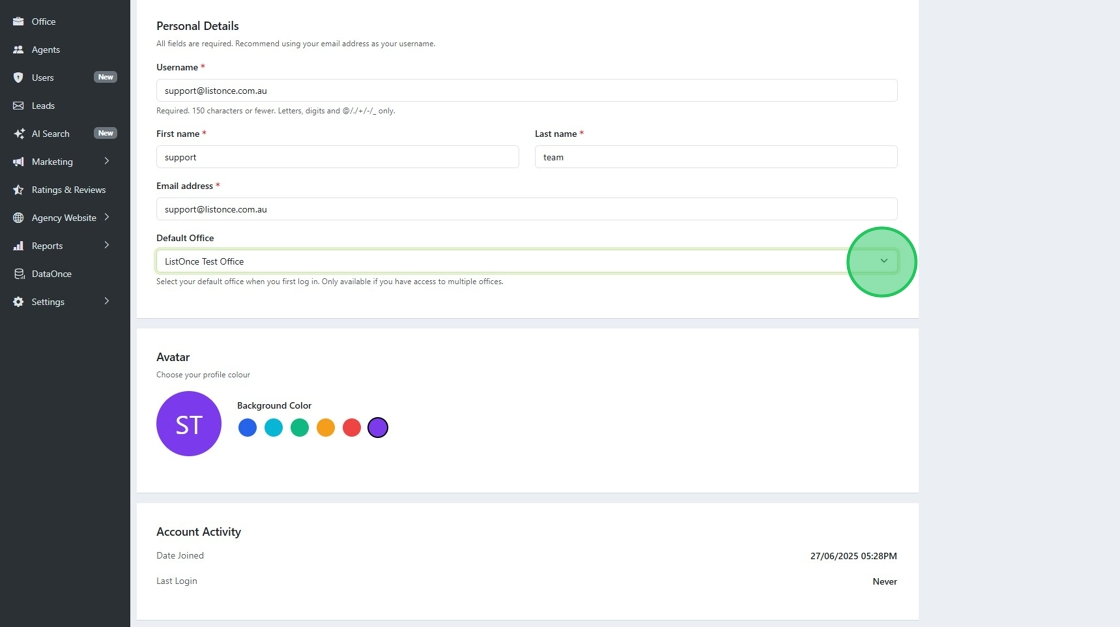
5. Select the default office drop-down and select your preferred office from the list.

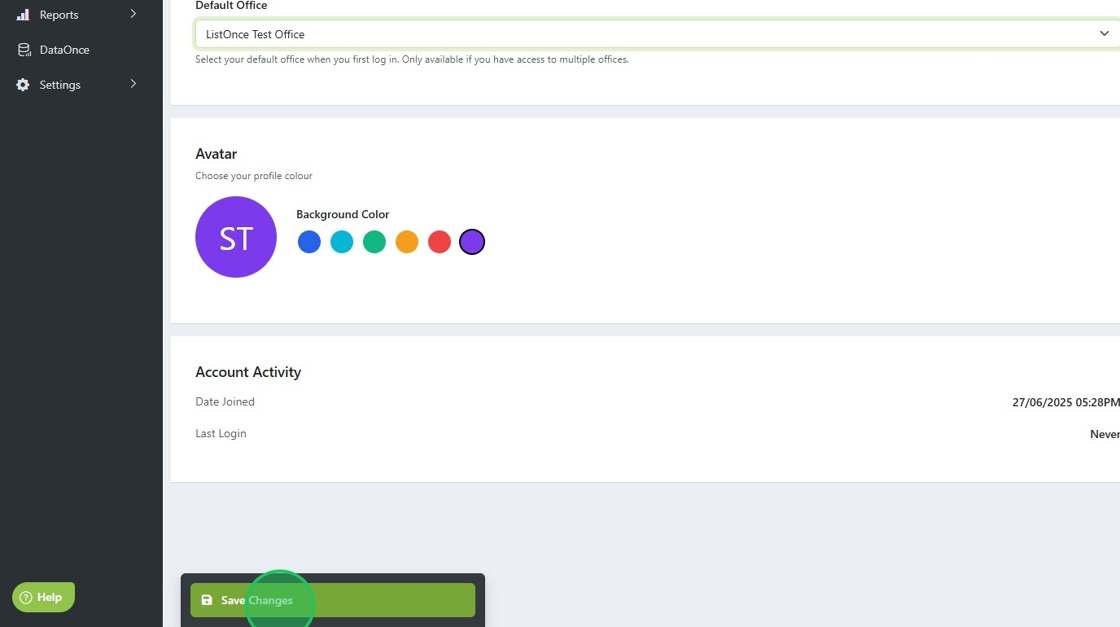
6. Click "Save Changes"
Was this article helpful?

That’s Great!

Thank you for your feedback

Sorry! We couldn't be helpful

Thank you for your feedback

Let us know how can we improve this article!

Select at least one of the reasons
CAPTCHA verification is required.

Feedback sent

We appreciate your effort and will try to fix the article