This guide provides a step-by-step approach to updating user profiles in the ListOnce Dashboard, making it easy to manage user information efficiently. By following these instructions, users can ensure their profiles are current and accurate, enhancing their experience on the platform. The guide simplifies potentially complex processes, saving time and reducing frustration. It's an essential resource for anyone looking to maintain up-to-date user profiles seamlessly.
1. Navigate to https://listonce.com.au/dashboard/user
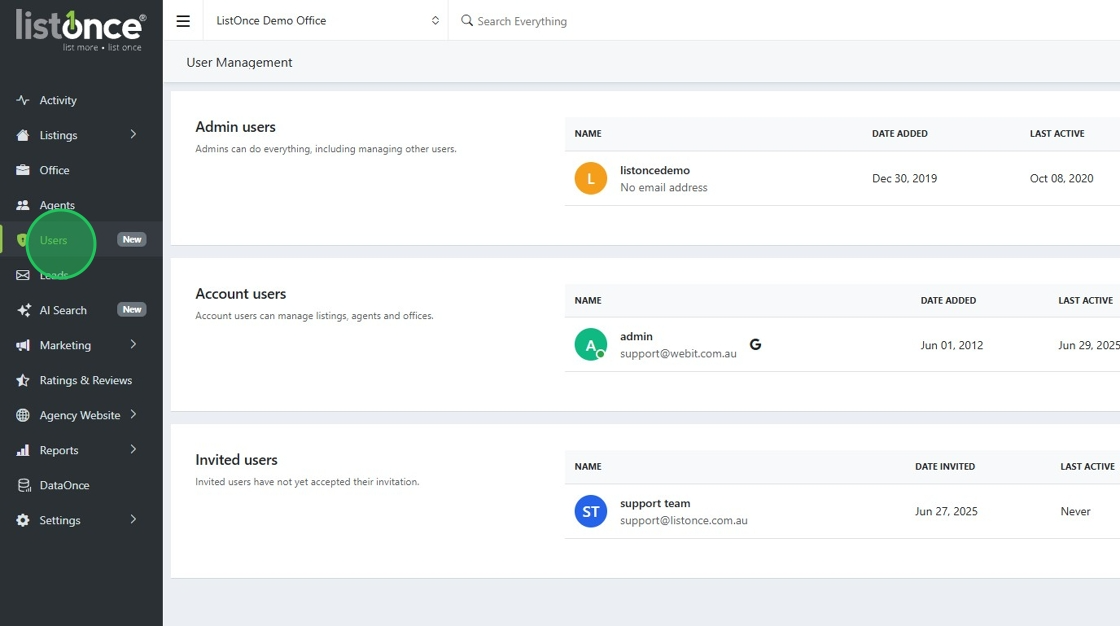
2. Click here to access a User profile
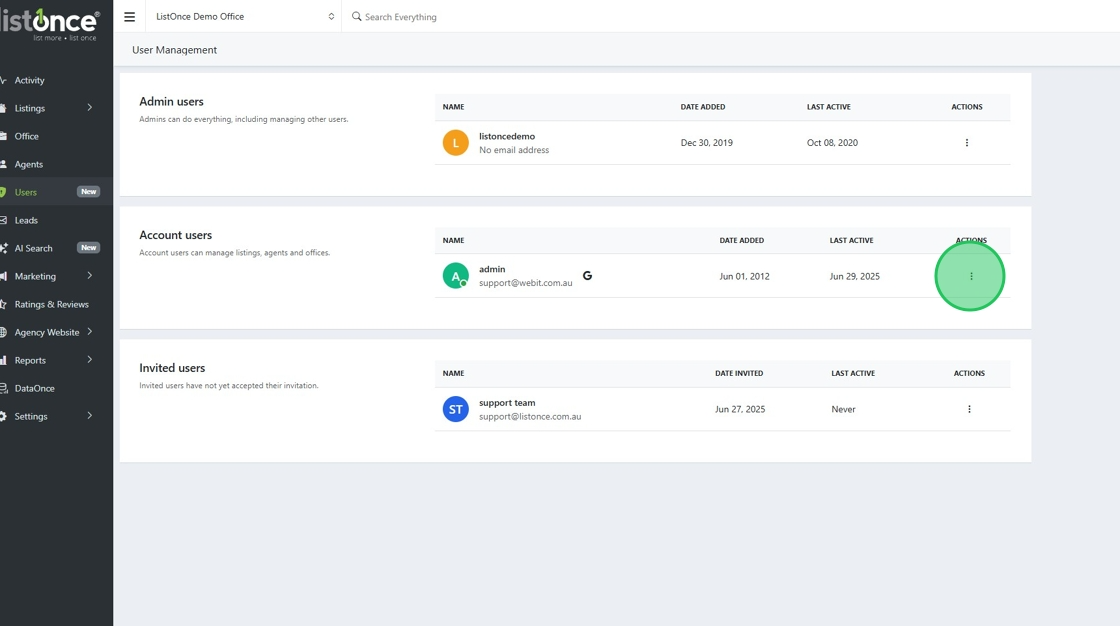
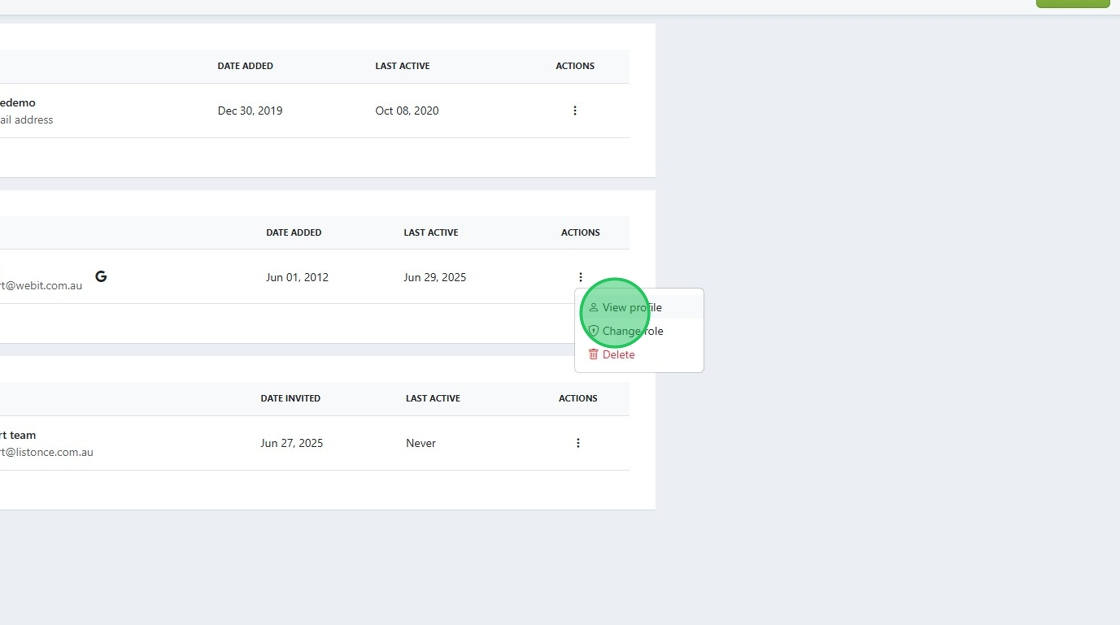
3. Click "View profile"
4. From this page, you can control various aspects of the User account. Be sure to press the save changes button at the bottom of the page after you make any changes.
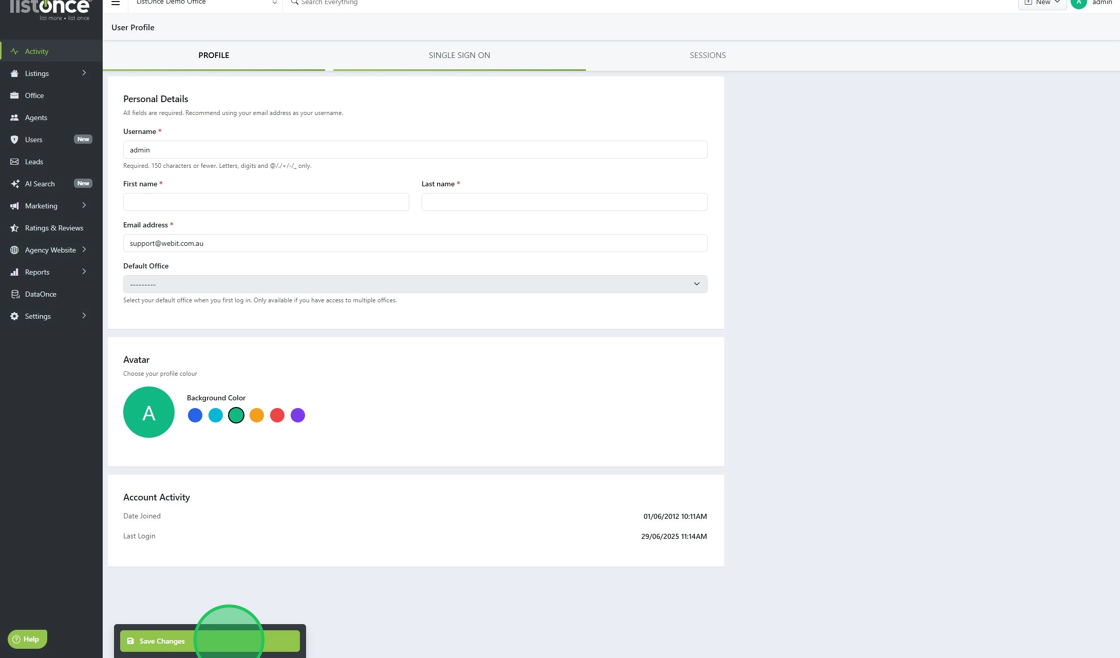
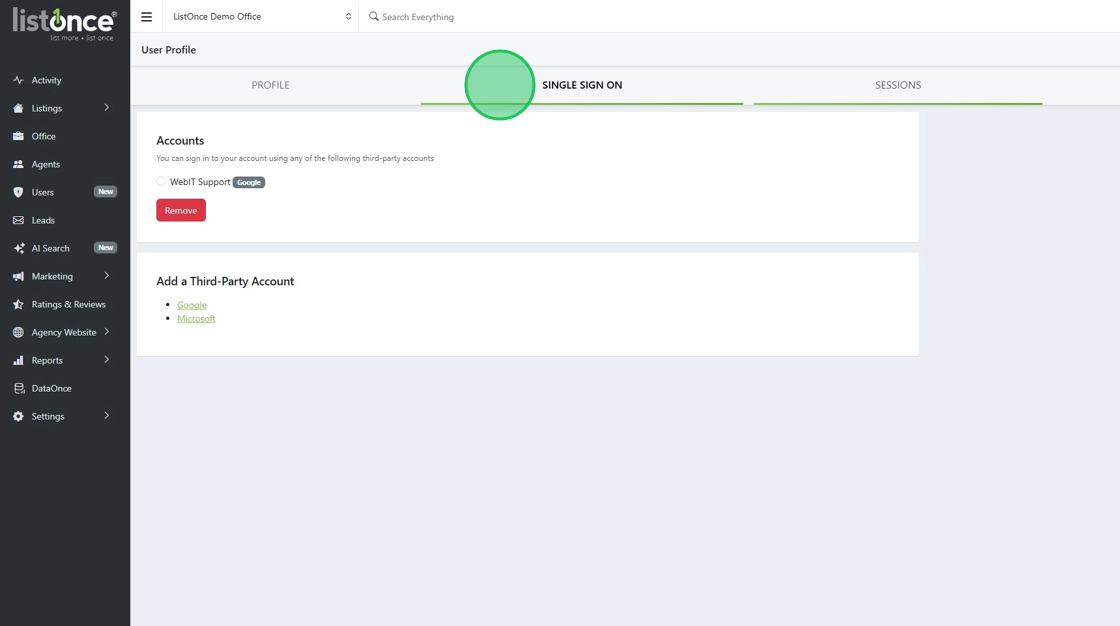
5. The Single Sign-On tab will provide you with information about the email account associated with the User.
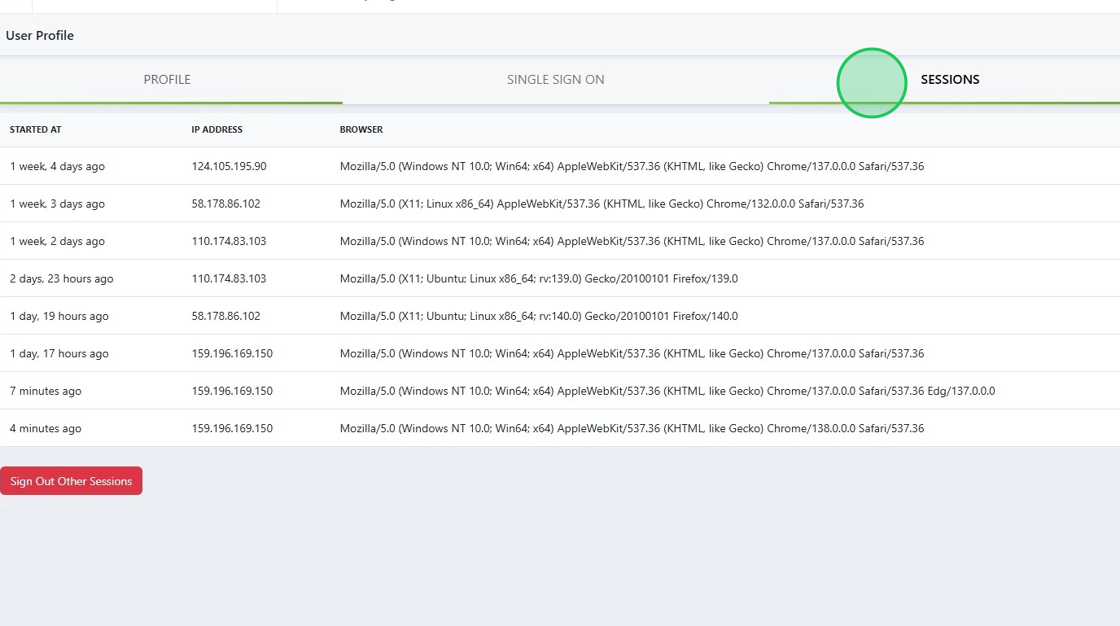
6. Sessions will provide a summary of User access to ListOnce.
Was this article helpful?
That’s Great!
Thank you for your feedback
Sorry! We couldn't be helpful
Thank you for your feedback
Feedback sent
We appreciate your effort and will try to fix the article